
Pixelup - AI Photo Enhancer
Codeway DijitalPhotography
3.94.52K Reviews
- Version
- 2.0.0
- Installs
- 10.00M
- Age Rating
- Everyone
Screenshots
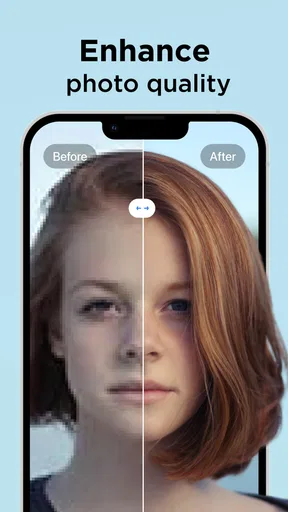
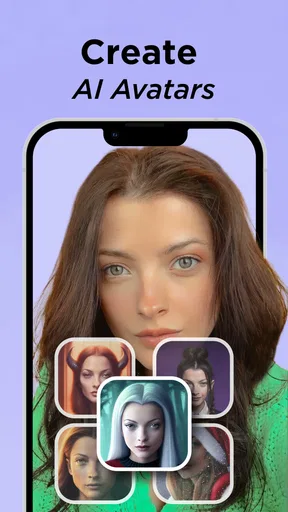
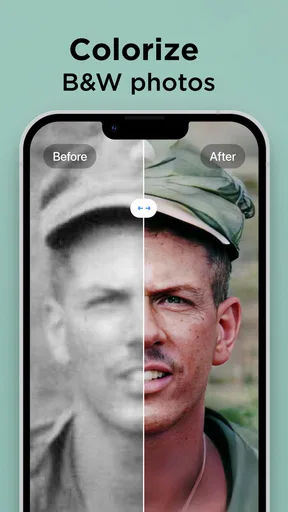
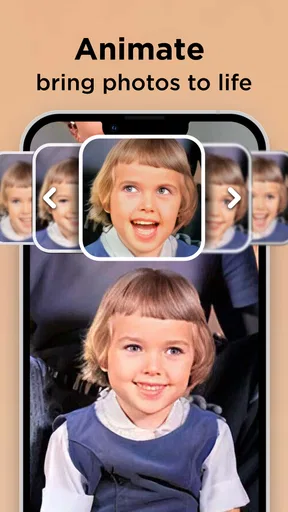
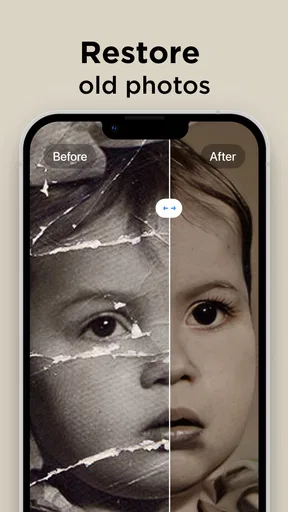
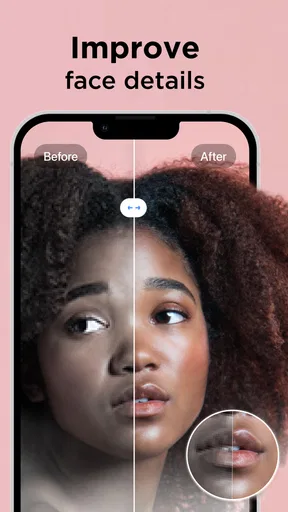
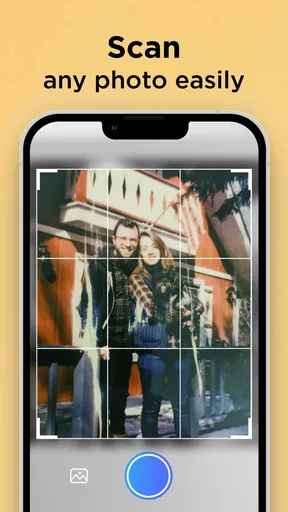
Our Review of Pixelup - AI Photo Enhancer
 Analysis by Appyee
I opened Pixelup - AI Photo Enhancer expecting a quick way to rescue a few soft pictures, and that is exactly where it makes the strongest first impression. This photography app from Codeway Dijital focuses on improving unclear images, adding color to black-and-white photos, and making old snapshots feel more usable on a modern phone. I found it easy to understand because the purpose is visible almost immediately: choose a picture, let the app process it, and compare the result with the original.
That simplicity matters. Many photo editors greet you with sliders, filters, layers, and technical controls before you have done anything. Pixelup takes a more direct route. It is aimed at people who want an automatic result rather than a lesson in image editing. The app is free to install, rated for Everyone, and available on devices running Android 8.0 or later. Its current version is 2.0.0, so it fits a wide range of everyday Android phones rather than being limited to recent hardware.
What Pixelup feels like during the first week
During the first few sessions, the appeal comes from the before-and-after moment. A slightly blurry portrait can look more defined, and a monochrome family picture can feel more lively once color has been introduced. I especially liked the idea of using it on photographs that are emotionally important but technically weak: a scanned picture from a family album, a dim image saved from an old phone, or a portrait that is recognizable but not sharp enough to print comfortably.
The app is not a replacement for a camera or a full editing suite. It cannot recreate detail that was never captured, and an artificial enhancement may sometimes look more polished than truthful. Still, the automatic approach is useful when the original file is all you have. Instead of spending time adjusting clarity, contrast, color balance, and sharpness separately, I could test a result quickly and decide whether it improved the picture enough to keep.
One practical workflow worked better than simply processing every image in a folder. I first made a small selection of the clearest originals, then compared the enhanced versions at the same zoom level. This helped me notice whether a face had gained believable definition or merely acquired exaggerated edges. The best results usually come from starting with a decent original that needs help, not a severely damaged image that needs reconstruction.
That distinction is easy to miss during the exciting first week. The dramatic examples are the pictures that already contain recognizable faces, outlines, and tones. When an image is extremely tiny, heavily compressed, or covered by motion blur, the result can become less natural. Pixelup can make such a picture look cleaner at a glance, but I would not treat the output as an exact recovery of the original scene.
The colorization option has a similar strength and limitation. It can make a black-and-white photograph more approachable for relatives who are used to viewing everything in color, and it gives old images a fresh presentation. However, the chosen colors are an interpretation rather than historical evidence. If the precise shade of a dress, wall, or vehicle matters, I would keep the original beside the colorized version and label the new one as an artistic reconstruction.
For a casual user, this is a comfortable introduction to AI photo enhancement. I did not need to understand technical terms before trying it, and the app’s purpose stayed focused on restoration-style changes rather than turning every photo into a social-media effect. That focus is one reason it feels more useful than a general filter collection when the goal is to improve a meaningful older picture.
Everyday situations where it earns a place
A realistic example is preparing a family image for a birthday message. I might have one old group photograph saved in a chat, with soft faces and faded contrast. Pixelup gives me a quick way to test whether the picture can become clearer before I send it. If the enhancement looks natural, I can share it as a cleaned-up memory; if it looks too artificial, I still have the original and have lost little time.
Another good use is organizing a digital archive. When scanning printed photographs, the scanner or phone camera may capture dust, uneven lighting, and mild softness. Pixelup can serve as a second pass after cropping and basic cleanup. I would not use it as the only preservation step, because keeping the untouched scan is important, but it can create a more presentable copy for browsing or sharing.
It is also handy for a single profile picture that is almost good enough. A face photographed in low light may benefit from a little extra definition without requiring a full retouching session. The important word is “little.” I prefer to stop when the person still looks like the person I photographed. Automatic tools become less convincing when the desire for a sharper image turns into repeated processing and increasingly artificial detail.
People who enjoy experimenting with old family photographs may get the most emotional value from the app. Someone looking for professional restoration, exact color matching, or advanced control over individual areas will probably find the experience too automatic. A traditional editor is slower, but it gives the user more say over what changes and what remains untouched.
Does the novelty survive from month to month?
After the first week, the question changes from “Can it improve this picture?” to “Will I keep opening it?” For me, the recurring value depends heavily on how many imperfect photographs I actually have. If my camera roll is mostly recent, sharp images, Pixelup becomes an occasional utility rather than a daily editor. That is not a weakness by itself; restoration tools naturally have a project-based rhythm.
The app makes more sense as part of a small photo-maintenance habit. I could review an old album periodically, choose a handful of images, compare the results, and save only the versions that genuinely look better. This avoids turning enhancement into an automatic step for every photo. It also keeps the process manageable, since judging each result takes more attention than pressing a single button.
One of the more useful long-term habits is preserving two versions: the original and the enhanced copy. The original protects the historical record, while the edited version is easier to share. This matters particularly with colorization, where the result may be visually attractive without being factually certain. Keeping both files prevents a convenience edit from quietly replacing the source.
Pixelup’s audience reach is substantial, with more than ten million installs and an average rating of about 3.9 from roughly one hundred three thousand ratings. Those figures suggest a widely tried app with a mixed but generally workable reception. I would read that as a reason to set realistic expectations rather than as proof that every photograph will improve. Automatic restoration is highly dependent on the source image, so personal results matter more than popularity.
The free entry point helps with occasional use, but the presence of in-app purchases ranging from $0.49 to $69.99 per item changes how I would approach longer projects. Before processing a large archive, I would test a few representative pictures and check exactly which actions require payment in the version on my phone. A free installation does not necessarily mean that unlimited restoration work will remain free, and this is worth considering before building a regular workflow around it.
That payment structure can affect whether the app earns lasting space. For a person who only wants to rescue a few special images, paying for a useful result may be reasonable. For someone expecting to enhance hundreds of photographs, the potential cost becomes part of the decision. In that situation, a desktop restoration program or a conventional editor with a one-time purchase may offer more predictable control, even if the process takes longer.
What I would do before processing a whole archive
I would begin with three kinds of images: a mildly blurry portrait, a black-and-white photograph with clear subjects, and a difficult image with low contrast or heavy compression. This small test reveals more than a polished example because it shows how the app behaves across different source quality. I would inspect faces, hair, text, and straight edges separately. A result can look impressive in a thumbnail while producing strange details when viewed closely.
I would also avoid repeatedly enhancing the same output. Processing an already processed image can amplify invented texture and make skin or clothing look brittle. My preferred sequence is to start from the original each time, compare one result, and keep the strongest version. This is a simple but important safeguard for anyone planning to use the app repeatedly over several months.
For black-and-white pictures, I would treat colorization as a presentation choice rather than a restoration fact. It can help younger family members connect with an old image, especially when the original feels distant or difficult to read. But I would never discard the monochrome source, and I would avoid describing the new colors as historically accurate unless I had separate evidence.
For sharpening, moderation is equally important. A little extra definition can help a face or object stand out, while too much can emphasize scanning marks, compression blocks, or halos around edges. If the app presents a simple automatic result rather than detailed adjustment controls, the user’s main control becomes selection: choosing which source image to process and which output to keep.
The maintenance burden and points of fatigue
Pixelup is easy to start, but easy access does not remove the need for judgment. Every enhanced image deserves a quick comparison with the original. That adds a small review task, especially when processing many pictures. If I were working through a large family archive, I would create a separate folder for candidates and another for approved results. Without that organization, it would be easy to confuse an attractive experiment with the final version.
Another source of fatigue is the gap between the promise of instant improvement and the reality of inconsistent images. One portrait may look noticeably clearer, while the next may show unnatural facial detail. A black-and-white scene with obvious objects may colorize pleasantly, while a complicated indoor picture may receive colors that feel distracting. The app is most satisfying when I accept it as a fast assistant, not as an infallible restorer.
There is also a creative fatigue that appears after the novelty fades. Once I have seen a few before-and-after transformations, I become less impressed by change alone and more interested in whether the picture is actually better. That is a healthy test. A stronger effect is not automatically a stronger photograph. If the enhanced version draws attention to the processing instead of the memory, I would choose the original or use a gentler alternative.
Compared with ordinary phone editing tools, Pixelup is more convenient for users who do not want to manage sliders. Standard editors are better when I need to crop, straighten, adjust exposure, remove a small distraction, or make a deliberate color correction. They also let me decide exactly how much sharpening to apply. Pixelup is better suited to the first attempt at rescuing a soft or monochrome image, especially when speed matters more than fine control.
Compared with professional restoration software, the trade-off is even clearer. Specialist tools can offer layer-based work, masks, manual retouching, and more careful control over damaged areas. They demand more time and knowledge, but they are preferable for valuable archival material or images that need precise treatment. Pixelup is the more approachable option for a personal project where an improved shareable copy is the goal.
I would also skip it if my main interest is creative photography rather than restoration. The app’s appeal is tied to making existing pictures more usable, not replacing a full creative editing workflow. A photographer who wants selective adjustments, raw-image control, or detailed color grading would likely feel constrained. Likewise, a user who dislikes AI-generated interpretations may prefer to keep edits manual, particularly for colorizing historical photographs.
Who should keep it installed?
I would recommend keeping Pixelup on an Android phone if you regularly encounter old family pictures, blurry portraits, or black-and-white images that you want to share without learning a complex editor. It is especially suitable for a quick project before a family event, a digital album, or a personal cleanup session. The Everyone age rating also makes its general audience positioning clear, although adults should still guide younger users around purchases and the difference between an enhancement and an authentic record.
I would be more cautious for anyone with a large archive and a strict budget. The free installation is useful for testing, but the in-app purchase range means long-term use can become less straightforward. I would not start a major restoration project until I had evaluated a few images and understood the available purchase choices. That short planning step can prevent disappointment later.
I would also choose another tool when accuracy matters more than convenience. A museum-style archive, a legal document, a photograph containing small text, or a historically important portrait deserves careful manual handling. Automatic enhancement may improve readability or appearance, but it can also invent detail. For sentimental everyday photos, that compromise may be acceptable; for evidence or preservation, it is not the approach I would trust alone.
My long-term verdict on Pixelup
Pixelup earns its initial appeal honestly: it turns a potentially technical photo task into a quick experiment. I like it most when I have one imperfect image with clear emotional value and want to see whether a sharper or colorized version is worth sharing. The app from Codeway Dijital is focused, approachable, and more useful than a generic filter app for this particular job.
Its lasting value is more selective. I would not keep opening it every day, because most camera rolls do not require constant restoration. Instead, I see it as a tool I would return to whenever I discover another old album, scan a batch of prints, or find a portrait that is almost usable. That occasional role is still worthwhile, provided I keep the originals and judge each result rather than accepting every automatic change.
The main friction comes from inconsistent outcomes, the possibility of artificial-looking detail, and the need to understand in-app purchases before committing to a larger project. Those issues do not cancel out the convenience, but they prevent me from treating the app as a complete restoration solution. The first-week excitement can fade quickly if a user expects every damaged image to become perfect.
My final recommendation is straightforward: try it on a small, mixed sample of your own photographs. If the results look natural on the pictures you care about, it can become a valuable occasional part of your photo routine. If you need precise editing, historical accuracy, or predictable large-scale costs, choose a manual editor or dedicated restoration software instead. Pixelup is at its best as a quick, selective rescue tool—not as an automatic replacement for careful photo preservation.
Verdict
Strengths of Pixelup - AI Photo Enhancer
- Enhances blurry, low-resolution photos with one-tap AI tools.
- Colorizes black-and-white images with generally natural-looking results.
- Includes creative effects for animating or stylizing portraits.
- Simple interface makes core enhancements easy for beginners.
- Supports restoring old family photos and damaged-looking images.
Limitations of Pixelup - AI Photo Enhancer
- Free exports may include watermarks or require watching advertisements.
- Some advanced features are locked behind a subscription.
- Results can look artificial on faces or heavily damaged photos.
- Processing may take longer when enhancing large image files.
- Cloud-based processing may raise privacy concerns for personal photos.
Similar Picks in This Category
View All
Google Photos
Google LLC4.4

Gallery
Google LLC4.2

Picsart AI Photo Editor, Video
PicsArt, Inc.3.9

B612 AI Photo&Video Editor
SNOW Corporation4.1

BeautyPlus-Selfie Photo Editor
PIXOCIAL TECHNOLOGY (SINGAPORE) PTE. LTD.4.5

Remini - AI Photo Enhancer
Bending Spoons4.1
Frequently Asked Questions
What is Pixelup - AI Photo Enhancer used for?
Pixelup is an AI-powered photo editing app designed to improve and restore images. During testing, its main tools were useful for sharpening blurry photos, increasing resolution, repairing some old or damaged pictures, colorizing black-and-white images, and creating short animations from still photos. It is especially aimed at users who want quick enhancements without manually adjusting complex editing settings.
Can Pixelup really improve blurry or low-quality photos?
Pixelup can noticeably improve certain photos, particularly portraits and images with moderate blur, compression, or low resolution. However, the result depends heavily on the original file. The app cannot reliably recreate details that were never captured, and strong blur, heavy pixelation, or damaged faces may produce artificial-looking results. It is best viewed as an enhancement tool rather than a guaranteed restoration solution.
Is Pixelup free to download and use?
Pixelup can generally be downloaded for free, but many of its advanced AI features may require in-app purchases or a subscription. Free users may encounter limits on available tools, processing frequency, export options, or watermarks, depending on the current version and promotional terms. Before confirming a trial or subscription, carefully check the price, renewal conditions, and cancellation instructions shown in the app store.
Does Pixelup require an internet connection?
Most of Pixelup’s AI processing appears to rely on online services, so an internet connection is normally required to upload images and generate enhanced results. Processing speed can vary according to the photo size, server demand, and connection quality. Users should also consider mobile data usage when working with multiple high-resolution images, especially while traveling or using a limited data plan.
Are my photos safe when I use Pixelup?
Before using Pixelup, review its current privacy policy and permissions because AI enhancement may involve sending photos to remote servers for processing. Avoid uploading highly sensitive documents, private identification images, or personal photographs if you are uncomfortable with cloud-based analysis. Also check whether the app stores uploaded files, how long they are retained, and which permissions are necessary for importing and saving images.
